Photo-to-video guide
How to Make an Ozil AI Goal Video from One Photo
To make an Ozil AI goal video, use a clear photo of one person, select the Ozil goal template, then review the finished clip before downloading. This guide explains the photo setup, the action to look for, and when an editing template or a written prompt makes more sense.
- By the Ozil AI editorial team
- Updated October 25, 2026
- 6 min read
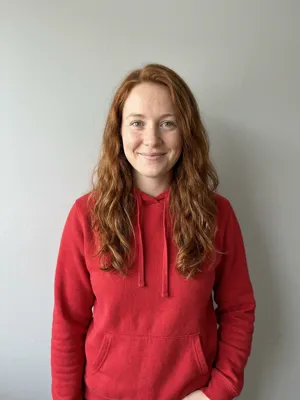
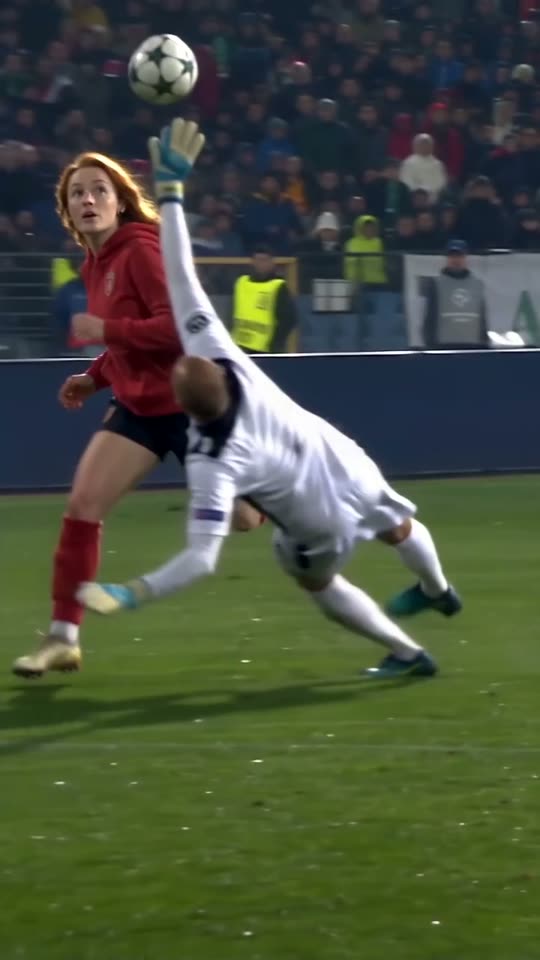
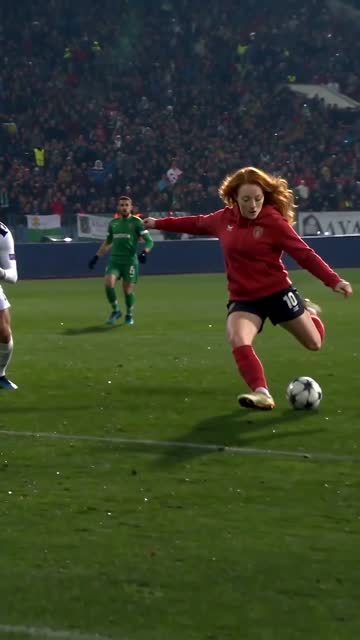
The studio currently makes 15-second videos for 10 credits each. The instructions below describe that workflow; other tools may offer different lengths, prices and controls.
Know the goal before you choose a tool
The recognizable Ozil AI edit follows a whole attacking move: a player approaches goal, lifts the ball past the advancing goalkeeper, changes direction as defenders recover, and finishes into the exposed net. The joke or surprise comes from seeing an ordinary portrait become the player who calmly completes that sequence.
Before making your version, watch a preview once for the face and once for the ball. A clip can look convincing as a portrait animation yet miss the goal entirely. The five frames below are a visual checklist for an AI recreation, rather than a frame-by-frame record of the original match. Their order matters more than an exact timestamp.
- 01Approach with the ball
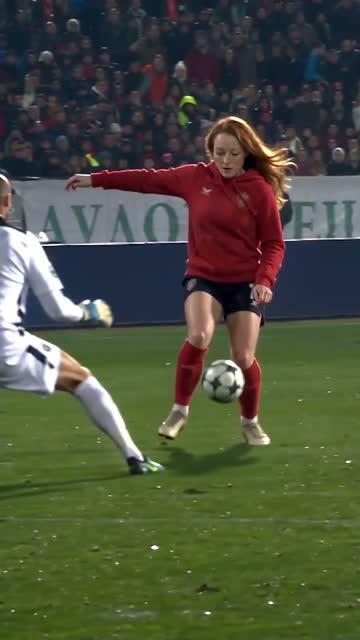 1
1 - 02Beat the advancing keeper
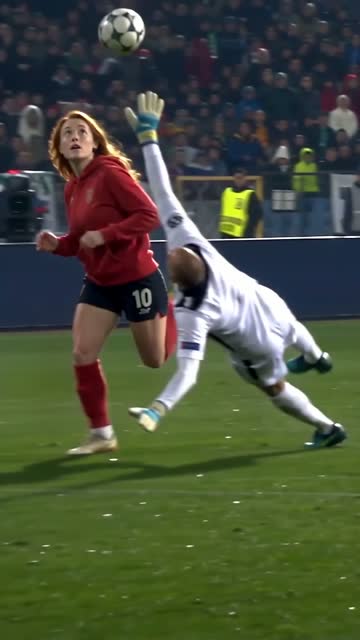 2
2 - 03Recover the same ball
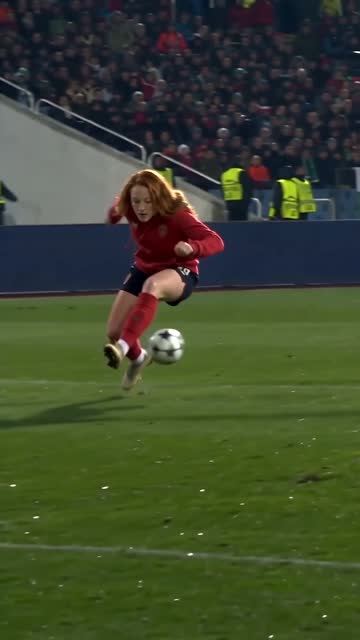 3
3 - 04Evade the defenders
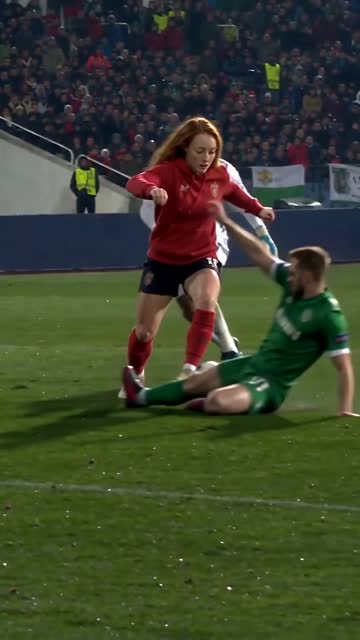 4
4 - 05Finish into the net5
Make your Ozil AI goal video in four steps
Use the photo workflow when you want a recognizable person in the goal edit without writing a scene from scratch. Start with a recent, sharp photo that you have permission to use. One clearly visible face gives you a more useful starting point than a group photo, a tiny profile picture, or a heavily filtered selfie.
- Choose the Ozil goal template. The Lamine template recreates a different football moment, so confirm the preview before using credits.
- Upload one well-lit portrait. Keep the face unobstructed, avoid sunglasses or hands over the cheeks, and leave some space around the head.
- Sign in and check your available credits. Confirm the displayed cost and photo, then submit one generation.
- Open your video library, review the complete action, and download the finished clip. Add music, subtitles or a caption afterwards if needed.
After submitting, check the job in your video library instead of starting a second render because the first one has not appeared immediately. When it is ready, inspect the face at the start and near the finish, then follow the ball through the keeper and defender moments. Download a version you are happy to share; results can vary between renders.
Make an Ozil AI goal videoWhen an editing template is the better option
A CapCut or similar editing template is useful if you already have usable football footage and mainly want the beat, transitions and caption style of an edit. It rearranges or decorates media you supply. That is a different task from turning a still portrait into a new football performance.
- Open the template preview and count the photo or video slots it needs.
- Replace the sample media with files you can use, and keep the key action visible inside the crop.
- Check the timing and export settings, then add a clear AI label if the final edit includes generated action.
Preview every required slot before committing to a template. Some designs expect several video clips rather than a single photo; some effects or exports may require payment. Check the current terms inside the editor instead of assuming that a shared template link includes every feature for free.
Use a prompt when you need control over the scene
A written Ozil goal AI prompt is useful in a tool that accepts both an image and freeform scene instructions. Describe the action in order and ask for a continuous shot. A request such as “make an amazing football goal” leaves the important keeper, defender and finishing moments unspecified.
Get the full Ozil goal AI prompt and troubleshooting guide
- Begin with the same clear portrait and state which person should remain recognizable.
- Describe one ball, the advancing keeper, the change of direction and the final touch in that order.
- Review one output, identify its largest error, and change one instruction at a time.
Use the person in the reference photo as the only main player in a continuous football goal sequence. Keep their face recognizable. The player runs towards goal with one ball, lifts it past an advancing goalkeeper, controls it on the other side, changes direction to evade two recovering defenders, then places it into the open net. Keep the player, ball and goal visible. Natural movement, consistent clothing, no camera cuts, no extra balls, no text.
The current studio uses its selected goal template; it does not provide a custom prompt field. The example below is for a separate workflow that accepts prompts. For a longer version, customization notes and symptom-based fixes, use the dedicated prompt guide linked below.
Photo template, editing template or prompt?
Choose by the material you already have. A portrait plus a fixed goal template is the shortest route to a personalized recreation. An editing template works with existing media. A prompt workflow gives more scene control, but it also requires you to judge whether the result actually follows your instructions. Compare the current options below; the pricing page is the source for available packs.
See current video packs and prices
| Compare | One photo on Ozil AI | CapCut template | A prompt-led edit |
|---|---|---|---|
| What you provide | One clear portrait and the Ozil goal template | Photos or existing clips required by the template | Reference photo plus scene instructions in a compatible tool |
| What to expect | A personalized recreation of the selected move | An edit assembled from your supplied media | A custom scene to inspect and refine |
| Clip length | Current studio: 15 seconds | Set by the editing template or timeline | Depends on the selected tool and duration controls |
| Cost | USD 6.99 / 1 video | Check the editor’s current template and export terms | Varies by tool and number of attempts |
Fix the most common problems before trying again
Judge the result against one clear goal: a recognizable person completing a readable football move. Adding more effects will not repair a missing finish. Use the symptom to decide whether to change the input photo, the instructions in a compatible tool, or only the final edit.
- The face changes: try a sharper, evenly lit portrait with one visible face and fewer obstructions. Avoid adding several competing identity references.
- The ball vanishes or doubles: in a prompt workflow, specify one ball and keep it in view. In the fixed template workflow, review a new render rather than looking for a prompt setting that is not present.
- The goal happens off screen: keep the player and net in the same composition when controls allow it. Do not crop away the last touch in your editor.
- The result is crowded or rushed: remove costume changes, extra celebrations and additional camera moves. Give the main action room to finish before adding a reaction shot.
Frequently asked questions
Q1Can I make an Ozil AI goal video from a selfie?
Yes. A sharp selfie of one person is a practical starting point. Choose a photo with even light, a visible face and no heavy filter. A full-body football photo is not required for the portrait workflow.
Q2Is the Ozil AI video generator free?
The current studio uses credits. One generation costs 10 credits; available packs and their total prices are shown on the pricing page. Do not assume that another website’s free offer, trial or video length applies here.
Q3How long is the finished video?
The current studio creates an 15-second clip. A prompt or an editing timeline in another tool may use a different duration. Stretching a short export can change its pace without adding missing football action.
Q4Do I need to paste a prompt into this studio?
No. Select the Ozil template and upload your photo. Use the copyable examples only in a tool that has its own prompt input. They are useful scene descriptions, not an extra requirement for this studio.
Q5What should I check before sharing my video?
Watch the whole clip for identity changes, extra balls and a missing final touch. Use a photo you have permission to upload, check music rights in your editor, and describe generated football action as AI rather than as authentic match footage.
NO. 10 / YOU
Your turn on the ball
Bring one photo. Take home your own football moment.
Open the studio